> ## Documentation Index
> Fetch the complete documentation index at: https://docs.paysight.io/llms.txt
> Use this file to discover all available pages before exploring further.
# Shipping
> Shipping products, display prices, ordering, and Shopify shipping-line behavior.
Setting up shipping options in Paysight checkout requires a dedicated Shopify product that acts as the shipping-line identifier. Create and sync this product before configuring customer-facing shipping options.
Find this module in **Shopify Stores** > **Edit Checkout** > **Checkout**.
## How it works
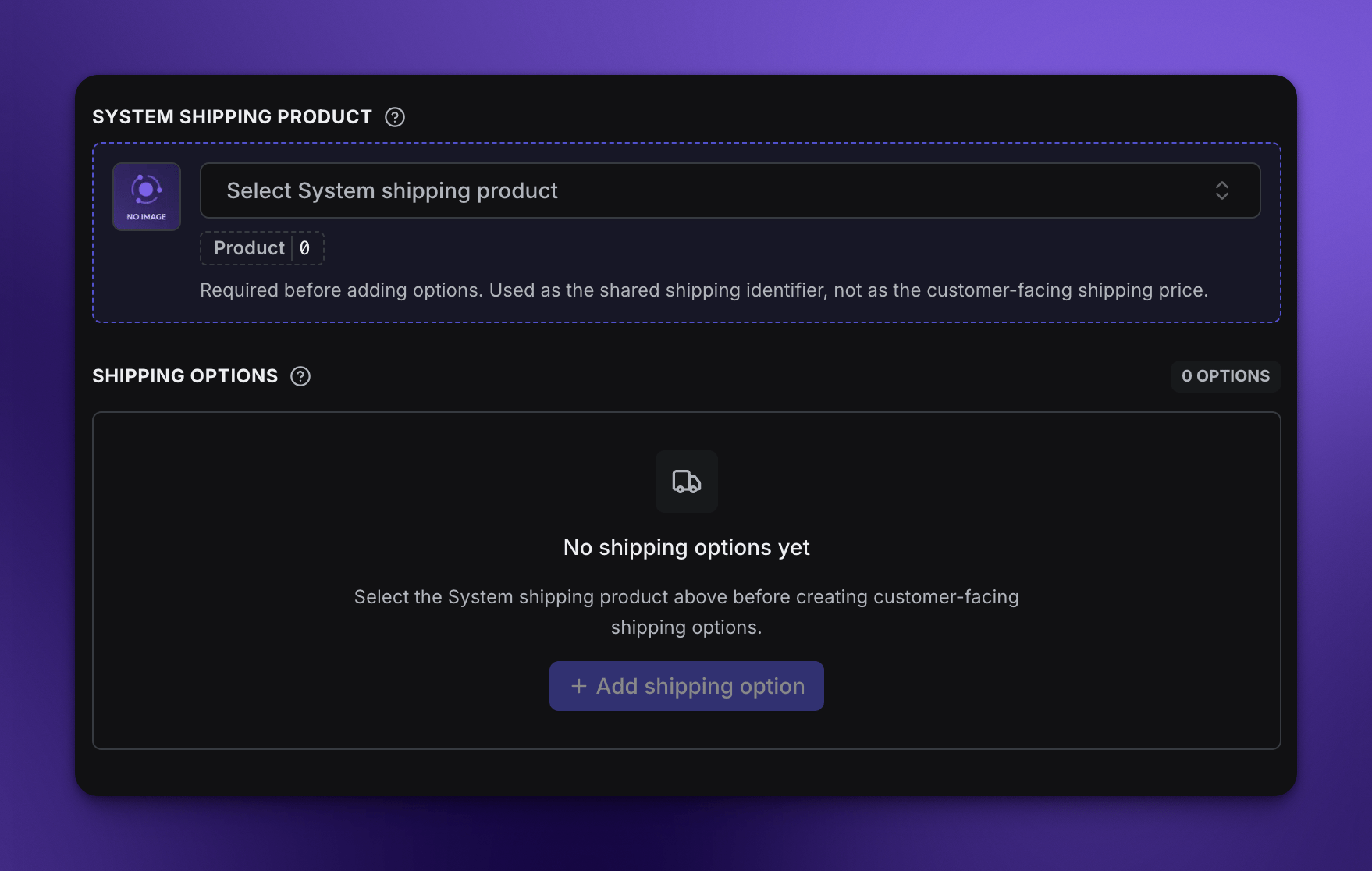
Create a dedicated shipping product in Shopify, sync products back to Paysight, select that product as the shared shipping product, then build customer-facing shipping options with prices, defaults, order, and availability rules. The shared Shopify product is not a regular item for customers to buy.
In Shopify Products, create a product for shipping. You can call it **Shipping** or use another internal name.
Set the price to **\$0**, then save the product as **Unlisted**. This product is an identifier; customers see and pay the prices configured on the shipping options in Paysight.
 Open [Shopify Stores](https://app.paysight.io/shopify-stores), edit the checkout for the store, then select **Sync Shopify Products** in the editor header.
Open **Checkout** > **Shipping** and select the product you created as the **System shipping product**.
Open [Shopify Stores](https://app.paysight.io/shopify-stores), edit the checkout for the store, then select **Sync Shopify Products** in the editor header.
Open **Checkout** > **Shipping** and select the product you created as the **System shipping product**.
 After a product is set, you can generate dynamic shipping options for your checkout with various rules.
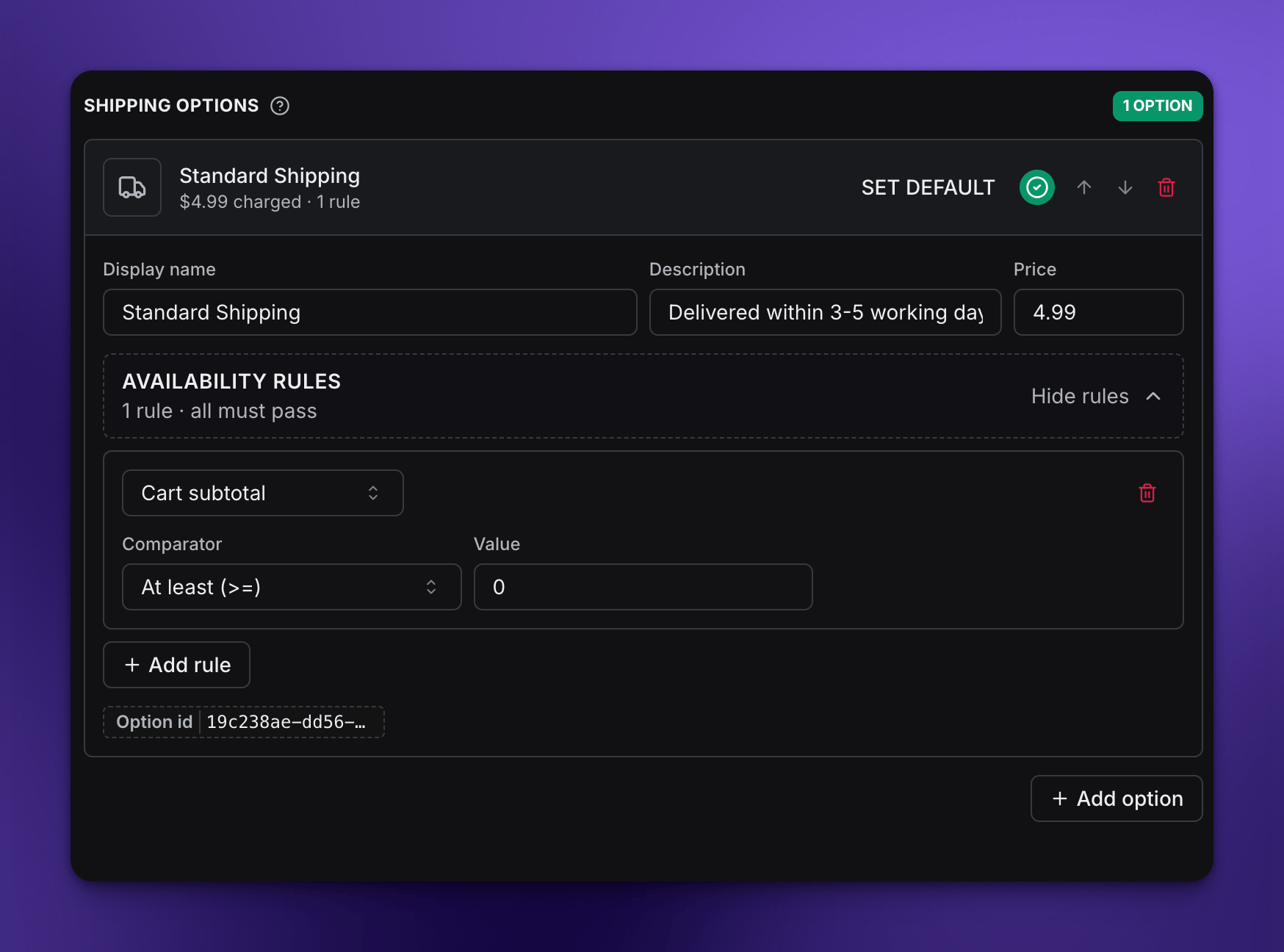
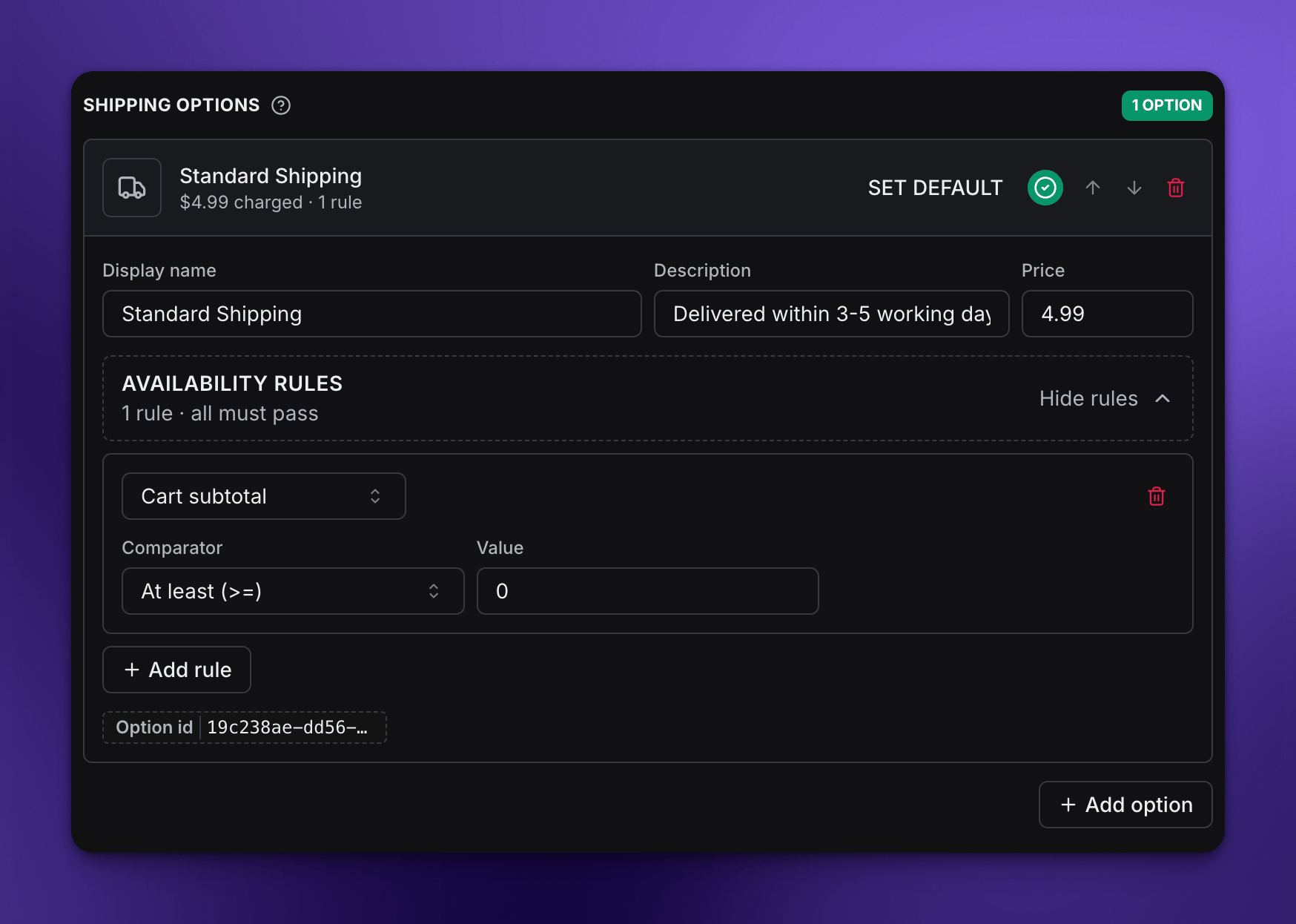
After the System shipping product is selected, add shipping options and set each customer-facing name, description, price, default state, order, and availability rules.
After a product is set, you can generate dynamic shipping options for your checkout with various rules.
After the System shipping product is selected, add shipping options and set each customer-facing name, description, price, default state, order, and availability rules.
 ## Settings reference
**You will set:** Shopify product picker
The synced, zero-priced Shopify product used as the shared identifier for shipping line items. Its Shopify price is not the customer-facing shipping charge.
**You will set:** Option list
The customer-facing shipping choices shown in checkout, such as Standard Shipping or Express Shipping.
**You will set:** Text field
The shipping method name customers see.
**Example:** `Standard Shipping`, `Express Shipping`, or `Free Shipping`.
**You will set:** Text field
Optional helper text for the shipping method.
**Example:** `Arrives in 3-5 business days`.
**You will set:** Price field
The shipping amount charged when the customer chooses this option.
**You will set:** Default button
The option checkout should preselect when it is available.
**You will set:** Move up/down controls
The order shipping options appear in checkout.
**You will set:** Rules editor
Rules that decide when an option appears. Every rule on an option must match before customers can select it.
**You will set:** Rule type
Shows an option only when the merchandise subtotal is above, below, or between selected values. The shared shipping product is excluded from this comparison.
**You will set:** Rule type
Shows an option only when cart quantity matches the selected quantity rule.
**You will set:** Rule type
Includes or excludes shipping options by destination country.
**You will set:** Rule type
Shows an option only during a selected time window.
## Examples
Select the shared shipping product, add Standard Shipping as the default option, then add Express Shipping with a higher price.
Add Free Shipping with a cart subtotal rule such as at least 75, and keep a paid standard option available as fallback.
Show a domestic method only for selected countries and a separate international method for other destinations.
## Before saving
* Create the shipping product in Shopify first, then sync products to Paysight.
* Use a dedicated \$0 System shipping product; do not treat it as merchandise or as the priced shipping option.
* Make sure at least one option is available for every supported cart and country.
* Test carts around subtotal thresholds and country rules.
## Related modules
Manage labels, regional behavior, reserve timer, and mobile checkout behavior.
Offer optional products during checkout before the order is complete.
Build post-purchase offers shown after checkout.
## Settings reference
**You will set:** Shopify product picker
The synced, zero-priced Shopify product used as the shared identifier for shipping line items. Its Shopify price is not the customer-facing shipping charge.
**You will set:** Option list
The customer-facing shipping choices shown in checkout, such as Standard Shipping or Express Shipping.
**You will set:** Text field
The shipping method name customers see.
**Example:** `Standard Shipping`, `Express Shipping`, or `Free Shipping`.
**You will set:** Text field
Optional helper text for the shipping method.
**Example:** `Arrives in 3-5 business days`.
**You will set:** Price field
The shipping amount charged when the customer chooses this option.
**You will set:** Default button
The option checkout should preselect when it is available.
**You will set:** Move up/down controls
The order shipping options appear in checkout.
**You will set:** Rules editor
Rules that decide when an option appears. Every rule on an option must match before customers can select it.
**You will set:** Rule type
Shows an option only when the merchandise subtotal is above, below, or between selected values. The shared shipping product is excluded from this comparison.
**You will set:** Rule type
Shows an option only when cart quantity matches the selected quantity rule.
**You will set:** Rule type
Includes or excludes shipping options by destination country.
**You will set:** Rule type
Shows an option only during a selected time window.
## Examples
Select the shared shipping product, add Standard Shipping as the default option, then add Express Shipping with a higher price.
Add Free Shipping with a cart subtotal rule such as at least 75, and keep a paid standard option available as fallback.
Show a domestic method only for selected countries and a separate international method for other destinations.
## Before saving
* Create the shipping product in Shopify first, then sync products to Paysight.
* Use a dedicated \$0 System shipping product; do not treat it as merchandise or as the priced shipping option.
* Make sure at least one option is available for every supported cart and country.
* Test carts around subtotal thresholds and country rules.
## Related modules
Manage labels, regional behavior, reserve timer, and mobile checkout behavior.
Offer optional products during checkout before the order is complete.
Build post-purchase offers shown after checkout.